Welcome to configuring Ubuntu Server 22.04 as a router tutorial series!
- Setup Ubuntu Server 22.04 as a NAT Router with Qemu/KVM, Part 1
- Setup Ubuntu Server 22.04 as a DHCP Server with Qemu/KVM, Part 2
- Setup Ubuntu Server 22.04 as a DNS Server with Qemu/KVM, Part 3
This is how it will look like the virtual network we are going to build:
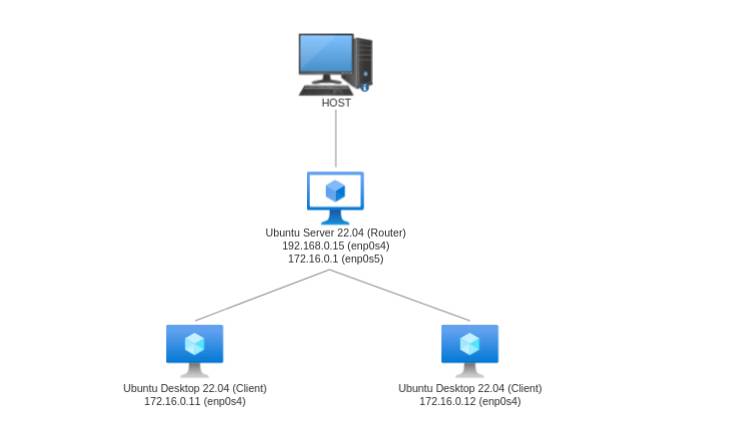
- enp0s4: WAN interface
- enp0s5: LAN interface with a ipv4 subnet prefix address 172.16.0.0/24
- 192.168.0.15: the first IPv4 address of Ubuntu Server 22.04 as WAN IPv4 address
- 172.16.0.1: the second IPv4 address of Ubuntu Server 22.04 as LAN IPv4 Gateway
- 172.16.0.11: the IPv4 address of the first client
- 172.16.0.12: the IPv4 address of the second client
First, we need to have three qemu images:
- Ubuntu Server 22.04 distro as a router gateway
- Ubuntu Desktop 22.04 distro as a client 1
- Ubuntu Desktop 22.04 distro as a client 2
Then, we need set up a linux bridge (which will act as a layer 2 switch) and three tap interfaces on the host computer to connect three qemu images to each other.
We can create a new tap interface using tunctl command. In order to use tunctl command, you need to install uml-utilities package on Ubuntu:
sudo apt install uml-utilitiesOr tunctl package on Fedora:
sudo dnf install tunctlWe need to create a tap interface for each of the virtual machines, then we will need to create three different tap interfaces:
sudo tunctl -u $USER -t tap1
sudo tunctl -u $USER -t tap2
sudo tunctl -u $USER -t tap3
Next, we bring the tap interfaces up:
sudo ip link set dev tap1 up
sudo ip link set dev tap2 up
sudo ip link set dev tap3 up
Then, we create a network bridge using brctl command:
sudo brctl addbr br0Bring up the network bridge:
sudo ip link set dev br0 upThen we attach the tap interfaces to the bridge interface:
sudo brctl addif br0 tap1
sudo brctl addif br0 tap2
sudo brctl addif br0 tap3
Start the Ubuntu Server 22.04 virtual machine by specifying two network interfaces (WAN interface and LAN interface) with unique mac addresses:
qemu-system-x86_64 -name "Ubuntu Server 22.04 Router Gateway" \
-machine type=pc-q35-2.12 -accel kvm \
-m 4G -cpu host \
-display sdl \
-bios /usr/share/ovmf/OVMF.fd \
-device virtio-vga,addr=01.0 \
-drive file=ubunturouter.img,if=none,id=drive0 \
-device nvme,serial=364740043439,addr=02.0,bus=pcie.0,drive=drive0 \
-netdev user,id=net0,ipv4=on,net=192.168.0.0/24,ipv6=on,ipv6-net=fdc8:45c7:c72b:b1e5::/64,dns=192.168.0.1,ipv6-dns=fdc8:45c7:c72b:b1e5::1 \
-device e1000-82545em,addr=04.0,bus=pcie.0,mac=38:24:10:62:34:78,netdev=net0 \
-netdev tap,id=net1,ifname="tap1",script=no,downscript=no \
-device e1000-82545em,addr=05.0,bus=pcie.0,mac=98:73:37:90:34:57,netdev=net1
List the network interfaces using ip command:
ip addr show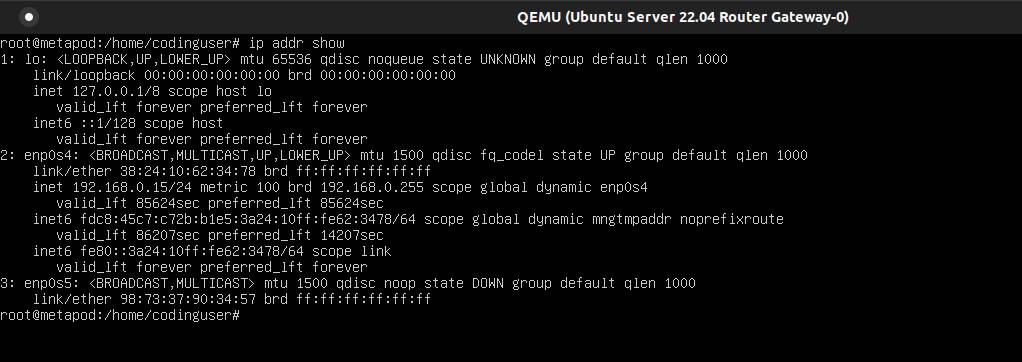
WAN interface enp0s4 sets to DHCP and LAN interface enp0s5 sets to static IP.
Create a network configuration file for WAN interface, 10-enp0s4.network, in the /etc/systemd/network/ directory.
[Match]
Name=enp0s4

[Network]
DHCP=yes
And create a network configuration file for LAN interface, 10-enp0s5.network, in the /etc/systemd/network/ directory.
[Match]
Name=enp0s5

[Network]
DHCP=no
Address=172.16.0.1/24
Address=fde0:fa74:a7a2:87e4::1/64
To apply the configuration, run:
sudo systemctl restart systemd-networkdThen, we install ufw firewall:
sudo apt install ufwTo enable UFW, use this command:
sudo ufw enableNext, we need to enable IP Masquerading. The purpose of IP Masquerading is to allow machines with private IP addresses on your network to access the Internet through the machine doing the masquerading.
Now add rules to the /etc/ufw/before.rules file. The default rules only configure the filter table, and to enable masquerading the nat table will need to be configured. Add the following to the end of the file just after the COMMIT:
# nat Table rules
*nat
:POSTROUTING ACCEPT [0:0]

# Forward traffic from eth1 through enp0s4.
-A POSTROUTING -o enp0s4 -j MASQUERADE

# don't delete the 'COMMIT' line or these nat table rules won't be processed
COMMIT
IP forwarding plays a fundamental role on a router. This is the functionality that allows a router to forward traffic from one network interface to another network interface.
Packet forwarding needs to be enabled in ufw and ensure that ufw is configured to support IPv6 so that it will manage firewall rules for IPv6 in addition to IPv4. Edit /etc/default/ufw change the DEFAULT_FORWARD_POLICY to "ACCEPT" and IPV6 to yes
Finally, disable and re-enable ufw to apply the changes:
sudo ufw disable && sudo ufw enableThen, we also need to IP forwarding on the Ubuntu Server system by editing /etc/sysctl.conf and uncomment the following line:.
net.ipv4.ip_forward=1

net.ipv6.conf.default.forwarding=1
Next, execute the sysctl command to enable the new settings in the configuration file:
sudo sysctl -p /etc/sysctl.confDynamic Host Configuration Protocol or DHCP is an IP network protocol that relies on client-server architecture to automatically set IP addresses and other attributes to an IP host to enable information transfer between network nodes.
DHCPv4 servers have a UDP port number of 67, so listen for messages addressed to this port number. On the other hand, DHCPv4 clients have the UDP port number 68 and only respond to messages sent to number 68.
DHCPv4 and DHCPv6 UDP port numbers are different. DHCPv6 servers have a UDP port number of 547 and DHCPv6 clients have the UDP port number 546.
In order to enable communication between the built-in DHCPv4 server of systemd-networkd on UDP port 67 and the built-in DHCPv4 client of systemd-networkd on UDP port 68, you need to open UDP port 67 in ufw:
sudo ufw allow 67/udpThe same as DHCPv6 server of systemd-networkd on UDP port 547 and the built-in DHCPv6 client of systemd-networkd on UDP port 546, you need to open UDP port 547 in ufw:
sudo ufw allow 547/udpStart the Ubuntu Desktop 22.04 virtual machines by specifying one network interface (only LAN interface) with unique mac addresses:
qemu-system-x86_64 -name "Ubuntu Desktop 22.04 Client 1" \
-machine type=pc-q35-2.12 -accel kvm \
-m 4G -cpu host \
-display sdl \
-bios /usr/share/ovmf/OVMF.fd \
-device virtio-vga,addr=01.0 \
-drive file=ubuntuclient1.img,if=none,id=drive0 \
-device nvme,serial=364740043439,addr=02.0,bus=pcie.0,drive=drive0 \
-netdev tap,id=net0,ifname="tap2",script=no,downscript=no \
-device e1000-82545em,addr=04.0,bus=pcie.0,mac=68:98:35:90:34:56,netdev=net0
qemu-system-x86_64 -name "Ubuntu Desktop 22.04 Client 2" \
-machine type=pc-q35-2.12 -accel kvm \
-m 4G -cpu host \
-display sdl \
-bios /usr/share/ovmf/OVMF.fd \
-device virtio-vga,addr=01.0 \
-drive file=ubuntuclient1.img,if=none,id=drive0 \
-device nvme,serial=364740043439,addr=02.0,bus=pcie.0,drive=drive0 \
-netdev tap,id=net0,ifname="tap3",script=no,downscript=no \
-device e1000-82545em,addr=04.0,bus=pcie.0,mac=82:54:65:76:38:28,netdev=net0Create a network configuration file for LAN interface, 10-enp0s4.network, in the /etc/systemd/network/ directory.
On the first client:
[Match]
Name=enp0s4

[Network]
DHCP=no
Address=172.16.0.11/24
Gateway=172.16.0.1
Address=fde0:fa74:a7a2:87e4::11/64
Gateway=fde0:fa74:a7a2:87e4::1
On the second client:
[Match]
Name=enp0s4

[Network]
DHCP=no
Address=172.16.0.12/24
Gateway=172.16.0.1
Address=fde0:fa74:a7a2:87e4::12/64
Gateway=fde0:fa74:a7a2:87e4::1
To apply the configuration, run:
sudo systemctl restart systemd-networkdConfigure systemd-resolved to use Google Public DNS so your system can have internet access. Edit /etc/systemd/resolved.conf, uncomment and change the DNS to 8.8.8.8
DNS=8.8.8.8To apply the configuration, run:
sudo systemctl restart systemd-resolvedTry to ping google.com to check internet connectivity. You should have internet access now.